Sample source
Browse the full sample on GitHub: raytrace_tutorial/12_infinite_plane
12 Infinite Plane - Tutorial
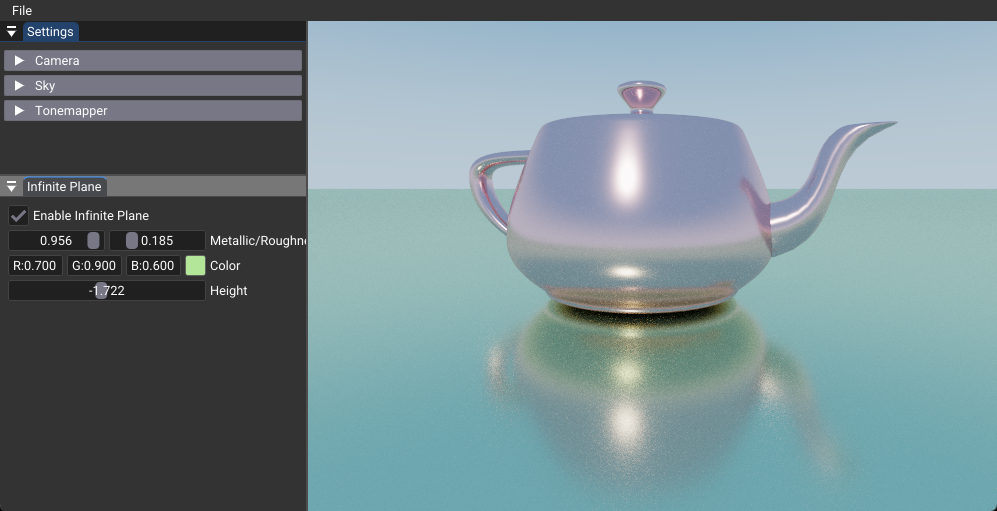
This tutorial demonstrates how to add an infinite plane to your ray tracing scene using custom intersection testing. You'll learn to integrate procedural geometry with the Vulkan ray tracing pipeline and implement proper hit state management for mixed scene geometry.
Key Changes from 02_basic.cpp
1. Data Structure Changes
Modified: shaders/shaderio.h
- Added infinite plane parameters to push constants for runtime control
- New fields enable plane visibility, positioning, and material properties
struct TutoPushConstant
{
  // ... existing fields ...
  float3 planeColor   = {0.7f, 0.9f, 0.6f};  // Plane material color
  float  planeHeight  = 0.0f;                 // Y-axis position
  int    planeEnabled = 1;                    // Runtime toggle
};
2. C++ Application Changes
Modified: 12_infinite_plane.cpp
- Added UI controls for interactive plane manipulation
- Integrated plane parameters with existing material override system
// UI controls for plane properties
modified |= ImGui::Checkbox("Enable Infinite Plane", (bool*)&m_pushValues.planeEnabled);
modified |= ImGui::ColorEdit3("Color", glm::value_ptr(m_pushValues.planeColor));
modified |= ImGui::SliderFloat("Height", &m_pushValues.planeHeight, -5.f, 2.f);
3. Shader Changes
Modified: shaders/infinite_plane.slang
- Added custom intersection function for infinite plane geometry
- Integrated plane testing into the main path tracing loop
bool checkInfinitePlaneIntersection(RayDesc ray, inout HitPayload payload)
{
  // Ray-plane intersection test
  float3 normal = float3(0, 1, 0);
  float Dn = dot(ray.Direction, normal);
  float intersectionDist = (-dot(ray.Origin, normal) + pushConst.planeHeight) / Dn;

  // Update payload if plane is closer than scene geometry
  if(intersectionDist > 0 && intersectionDist < payload.hitT)
  {
    payload.hitT = intersectionDist;
    payload.instanceIndex = -1;  // Special identifier for plane
    return true;
  }
  return false;
}
How It Works
The infinite plane implementation uses a post-intersection testing approach where custom geometry is evaluated after the standard ray tracing pipeline. This technique allows procedural geometry to seamlessly integrate with acceleration structures.
The Two-Phase Intersection Process
- Standard Ray Tracing:
traceRay()finds intersections with scene geometry - Custom Testing:
checkInfinitePlaneIntersection()evaluates if the plane is closer
// Phase 1: Standard scene intersection
traceRay(ray, payload);

// Phase 2: Custom plane intersection
bool usePlane = checkInfinitePlaneIntersection(ray, payload);
Hit State Management
The plane intersection function updates the hit payload to override scene geometry when the plane is closer. The instanceIndex = -1 serves as a special identifier to distinguish plane hits from scene geometry.
Benefits
- Seamless Integration: Works with existing acceleration structures
- Runtime Flexibility: Can be toggled and modified without scene rebuilds
- Performance Efficient: Minimal computational overhead
- Material Consistency: Uses the same shading pipeline as scene geometry
Technical Details
Ray-Plane Intersection Mathematics
The intersection test uses the standard ray-plane intersection formula:
- Plane Equation: dot(point, normal) = height
- Ray Equation: point = origin + t * direction
- Intersection: t = (height - dot(origin, normal)) / dot(direction, normal)
Performance Considerations
- Early Exit: Function returns immediately if plane is disabled
- Distance Culling: Only updates payload if plane is closer than existing hits
- Parallel Efficiency: Each ray evaluates independently, maintaining GPU parallelism
Material System Integration
The plane uses the same material system as scene geometry, allowing consistent shading and lighting calculations. The special instanceIndex = -1 triggers custom material assignment in the shading code.
Usage Instructions
- Enable the Plane: Use the "Enable Infinite Plane" checkbox in the UI
- Adjust Position: Modify the height slider to position the plane vertically
- Customize Appearance: Use the color picker and material sliders for visual control
- Interactive Testing: Toggle the plane on/off to see the difference in scene composition
Recommended Settings: - Height: 0.0 to -2.0 for ground planes - Color: Neutral tones (0.7, 0.7, 0.7) for realistic ground - Material: Low roughness (0.1-0.3) for reflective surfaces
Common Issues and Solutions
Plane doesn't appear: Verify planeEnabled is set to 1 and camera is above the plane height
Plane appears behind objects: Check that the intersection distance comparison logic is working correctly
Performance impact: The plane test is very lightweight, but ensure it's not called unnecessarily in disabled states